Authentication & SSO
Athena signs users in with local accounts, an LDAP / Active Directory directory, or Keycloak single sign-on over OIDC. Every provider mints the same Athena session token, so roles and authorization policies work identically no matter how a user signed in.
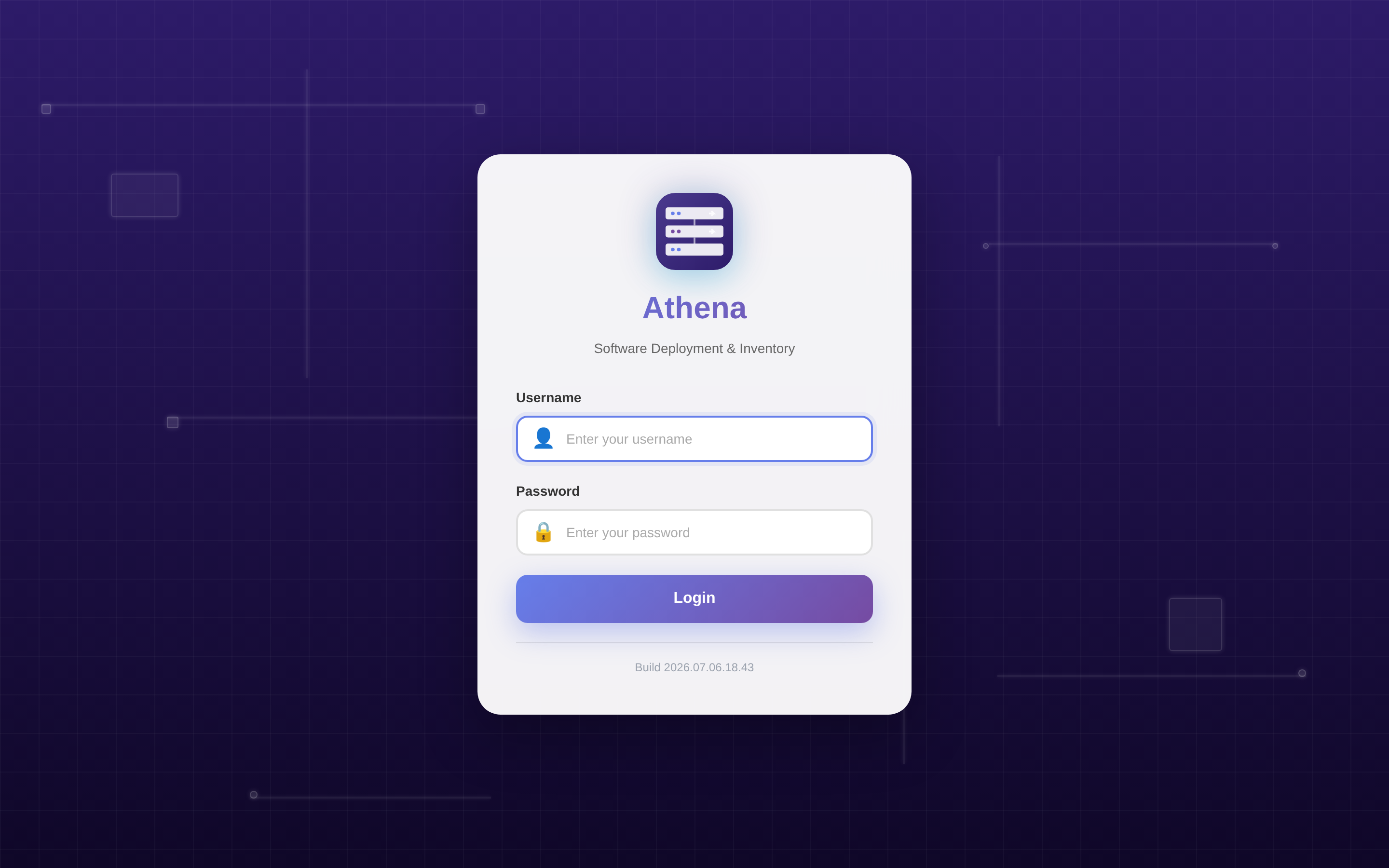
Supported providers#
| Provider | Protocol | Sign-in | Notes |
|---|---|---|---|
| Local | Username / password | Console & api/auth/login | Always available. The first admin is seeded from the DefaultAdmin config section. |
| LDAP / Active Directory | LDAP bind | Console & api/auth/login | Username/password verified against your directory, with directory groups mapped to roles. See LDAP / Active Directory Integration for setup (Admin only). |
| Keycloak | OIDC (OpenID Connect) | Browser SSO (auth-code + PKCE) & CLI device-code | Confidential client with authorization-code + PKCE for the browser, and an OIDC device-code flow for the PowerShell module. Configured under api/settings/oidc (Admin only). |
Keycloak is the officially supported OIDC provider — Athena's SSO connector is built and tested against Keycloak's OIDC endpoints (including how Keycloak emits realm/client roles into the access token). Athena does not implement SAML or WS‑Federation, so there is no dedicated ADFS integration. If your ADFS is fronted by, or federated into, Keycloak (Keycloak brokering ADFS as an upstream identity provider), Athena talks to Keycloak as usual. A direct ADFS-as-OIDC configuration is not a tested/supported path today — if you need native ADFS/SAML, please reach out so we can track the request.
Keycloak SSO — step by step#
Athena is an OIDC relying party. Configuration has two halves: create a client in your Keycloak realm, then point Athena at that realm.
Prefer to watch first? This short walkthrough covers the whole flow — stand up Keycloak in
Docker, register the athena-web client, enable and fill in OIDC under
Settings → Security, test the connection, save, and sign in with Keycloak —
landing on the dashboard. The written steps below follow the same order.
1. Create the client in Keycloak#
- In your realm, create a confidential (client-authentication ON) OpenID Connect
client — for example
athena-web. Note the generated client secret. - Enable the Standard flow (authorization code) for browser SSO. If you also want to sign in from the PowerShell module, enable the OAuth 2.0 Device Authorization Grant on the same client.
- Set the Valid redirect URI to Athena's callback:
https://<athena-host>/api/auth/oidc/callback(this is the defaultCallbackPath; Athena also shows the exact redirect URI to whitelist in the settings UI). - Make sure the client emits roles — Athena reads realm and client roles from the access token to resolve the Athena role (see Role mapping).
2. Configure Athena#
Configure OIDC as an Admin from the Security settings in the console, or over the REST API / PowerShell. The key fields:
| Field | Meaning | Example |
|---|---|---|
Enabled | Turn Keycloak login on (off = local-only) | true |
Issuer | Realm authority; Athena appends /.well-known/openid-configuration for discovery | https://kc.contoso.com/realms/athena |
ClientId | The confidential client id you created | athena-web |
ClientSecret | Client secret (write-only; stored encrypted, never returned) | •••••••• |
Scopes | Space-delimited scopes requested | openid profile email roles |
CallbackPath | Server-side redirect path (combined with the host) | /api/auth/oidc/callback |
DefaultRole | Role applied when no realm role maps to an Athena role | User |
DenyOnNoMatch | Deny sign-in when no role maps (instead of the default role) | false |
PropagateLogoutToIdp | Federated (RP-initiated) logout at Keycloak on sign-out | true |
PostLogoutRedirectUri | Where Keycloak returns after a federated logout | https://<athena-host>/ |
Using the Athena PowerShell module (requires an Admin session):
# Point Athena at your Keycloak realm and enable SSO
Set-AthenaOidcSettings -Enabled $true `
  -Issuer "https://kc.contoso.com/realms/athena" `
  -ClientId "athena-web" `
  -ClientSecret "<client-secret>"

# Verify discovery + JWKS are reachable before relying on it
Test-AthenaOidcConnection

# Review the current config (the secret is always masked)
Get-AthenaOidcSettingsThe test-connection probe (POST api/settings/oidc/test-connection, or
Test-AthenaOidcConnection) checks that the issuer's discovery document and JWKS are
reachable. A non-loopback issuer must be served over HTTPS.
3. Sign in#
Once enabled, the console login page offers a Keycloak sign-in button (authorization-code + PKCE): the browser is redirected to Keycloak, and on a successful callback Athena validates the tokens, provisions the user just-in-time, and mints the Athena session. From the CLI, use the device-code flow — see Connect-Athena — Keycloak SSO:
Connect-Athena -Server "athena.contoso.com" -KeycloakRole mapping & provisioning#
SSO users are provisioned just-in-time on first sign-in and mapped to one of Athena's fixed roles (see Roles & Permissions). Athena reads the realm and client roles from the Keycloak access token and resolves them through the same group→role mapping model used for LDAP / Active Directory:
- The highest matching role wins.
- If no role matches, the user gets
DefaultRole— unlessDenyOnNoMatchis on, in which case sign-in is denied. - A disabled account, or a username that collides with an existing local account, is denied.
Federated logout#
Signing out always tears down the local Athena session first. When
PropagateLogoutToIdp is on (the default), Athena also performs an RP-initiated logout
at Keycloak's end_session_endpoint and returns the browser to the configured
PostLogoutRedirectUri (or the app root). If discovery is unreachable, logout falls
back to a safe local-only sign-out.