Agent Enrollment
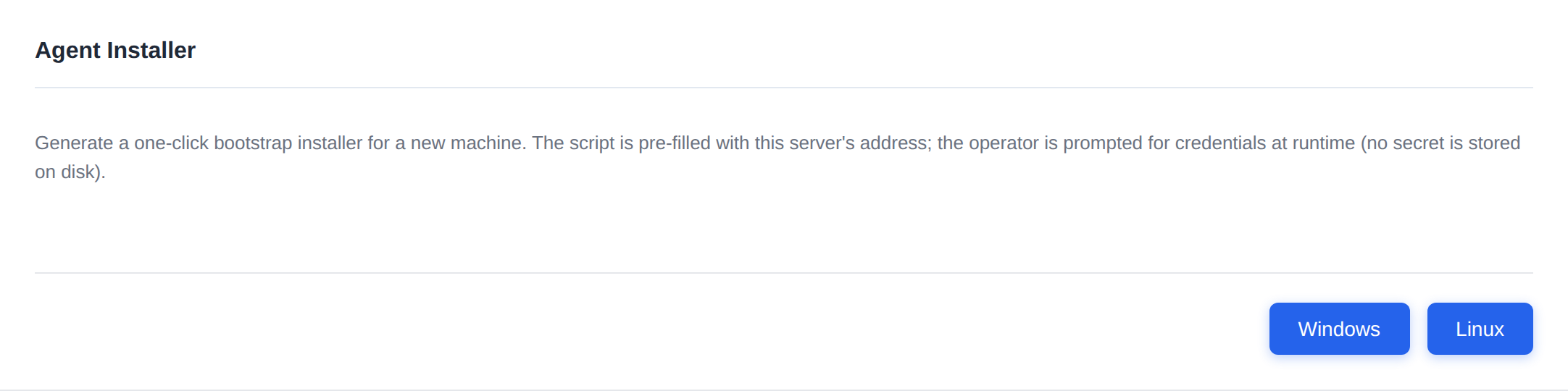
Bringing a machine under management is a copy-and-paste. In the console, open
Settings → Agent, generate an installer for Windows or Linux, copy
the one-liner it gives you, run it on the target, and sign in with your credentials. The Hermes
agent then connects outbound only to the server on port 8444 and
authenticates with a per-agent X.509 certificate — there are no inbound ports
on the agent.
How enrollment works#
The quickest path uses the built-in installer generator — nothing to hand-edit:
- In the console, open Settings → Agents and stay on the Configuration sub-tab (it's the default). Scroll down to the Agent Installer card — it appears only if you're signed in as an Admin — and click Windows or Linux.
- The server generates the installer and reveals a copy-to-clipboard one-liner with your server address already filled in.
- Run the one-liner on the target machine and provide your credentials when prompted. The agent installs, registers, and receives its certificate automatically.
Issued certificates are valid for 60 days (key size 2048) and
auto-renew 7 days before expiry. The agent runs a renewal check every
6 hours.
Generate an installer (Settings → Agents → Configuration)#
The Agent Installer card lives on the Configuration sub-tab of Settings → Agents (the default sub-tab) — scroll down past the Heartbeat, Certificate, Deployment and Log Level sections to reach it. The card is shown only to Admin users. It is the easiest way to enroll a host. Pick the OS, and the console:
- downloads the ready-to-run install script, and
- reveals a copy-to-clipboard one-liner with your server address already embedded — nothing to edit by hand.
Copy the one-liner, run it on the target, and provide your credentials when prompted. Only Windows and Linux are supported (macOS is not). The generated commands look like:
Windows (PowerShell)#
iex (New-Object Net.WebClient).DownloadString('https://<server>:8443/...')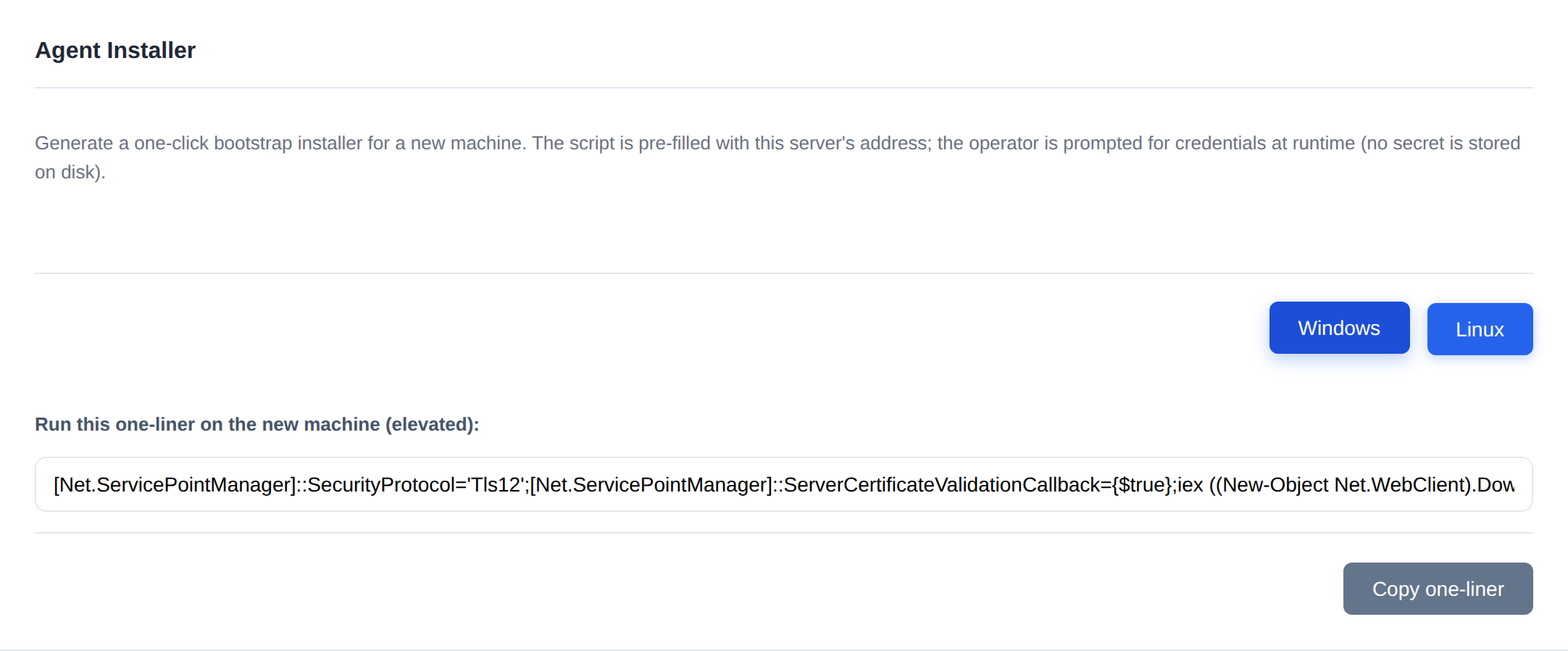
Linux (download-then-run)#
The Linux installer is deliberately not a curl | bash one-liner — it downloads first, then runs:
curl -fsSLk https://<server>:8443/... -o /tmp/athena-linux-agent-install.sh && sudo bash /tmp/athena-linux-agent-install.sh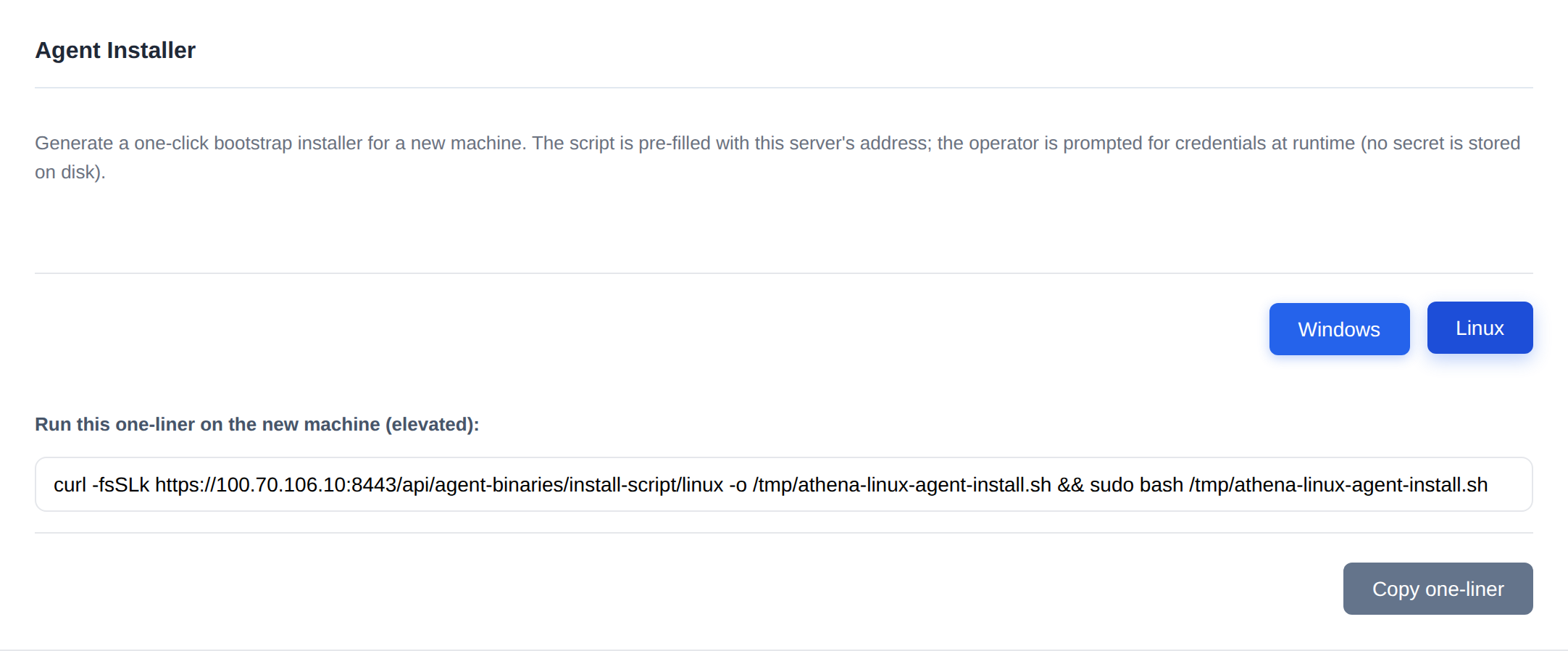
You don't type these by hand — the Settings → Agents card fills in your server address and hands you the exact one-liner with a copy button.
Unattended enrollment with tokens#
For scripted or unattended rollout — where no one is at the keyboard to enter credentials — use a registration token instead. Tokens are created in the console or via the API, and each carries an expiration and a max-usage count.
| Action | Endpoint |
|---|---|
| Create a token | POST api/Tokens |
| List tokens | GET api/Tokens |
| Revoke a token | POST api/Tokens/{id}/revoke |
Default token validity is governed by the Security:AgentTokenValidityDays setting
(90). For the full token lifecycle — validity, usage limits, revoke vs. delete, and
the four PowerShell cmdlets — see Registration Tokens.
A downloadable ZIP bundle can embed a short-lived registration token (default 1 hour, max 4 hours) so a host can enroll without a separately distributed token.
The installer and binary endpoints live under api/agent-binaries:
| Endpoint | Purpose |
|---|---|
api/agent-binaries/install-script/{os} | Per-OS install script |
api/agent-binaries/{id}/download | Download a specific agent binary |
api/agent-binaries/{id}/download-bundle | Download the ZIP bundle (with embedded token) |
api/agent-binaries/latest/{os} | Latest binary for an OS |
Agent configuration#
The agent's appsettings.json has an Agent:Servers[] array. Each entry
has Name, Url (e.g. https://localhost:8444),
RegistrationToken, and Enabled. Multiple servers are supported, so a
single agent can be multi-homed.
"Agent": {
  "Servers": [
    {
      "Name": "Primary",
      "Url": "https://localhost:8444",
      "RegistrationToken": "<token>",
      "Enabled": true
    }
  ]
}
Other agent keys:
| Key | Meaning |
|---|---|
HeartbeatIntervalSeconds | Heartbeat cadence to the server |
StatusUpdateIntervalSeconds | Full inventory interval |
DataPath | Data directory (empty = %ProgramData%\Hermes) |
ValidateServerCertificate | false for dev self-signed certs |
CertificateRenewalDays | Days before expiry to renew (7) |
ConnectionTimeoutSeconds | Connection timeout (30) |
ReconnectDelaySeconds | Delay between reconnect attempts (10) |
MaxReconnectAttempts | Reconnect attempt cap (0 = infinite) |
UpdateScanner:Enabled | WSUS CAB scanning (false) |
Log paths:
- Windows:
C:\ProgramData\Hermes\Logs\hermes-.log - Linux:
/var/lib/hermes/logs/hermes-.log
Certificates & PKI#
The server generates its Root CA on first run. Agent certificates are issued, renewed, and revoked through the PKI API:
| Action | Endpoint |
|---|---|
| Download the CA | GET api/Pki/ca/download |
| Register a certificate | POST api/Pki/register |
| Renew a certificate | POST api/Pki/renew |
| View issued certificates | api/Pki/my-certificates |
| Revoke an agent certificate | api/Pki/agents/{agentId}/revoke |
Install the CA into the agent host's trust store, or set
ValidateServerCertificate=false for self-signed dev setups.
Agent self-update#
The server stores agent binaries under AgentUpdate:StoragePath
("./agent-binaries"). AutoUpdateEnabled is false by
default. Push updates through the agent-updates API:
| Endpoint | Purpose |
|---|---|
api/agent-updates/push | Push an update to agents |
api/agent-updates/history | Update history |
api/agent-updates/history/{agentId} | Update history for one agent |
For the full lifecycle — uploading and signing builds, choosing the active version per OS, pushing to selected agents, and reading update history — see Agent Binaries & Updates.
Copy the installer bundle onto the isolated network. The agent only needs network
reachability to the server on port 8444 (gRPC) and 8443
(binary/package downloads). See Air-Gapped Operation.